
How to change payment method / update card details
Change your payment method in the customer portal
We are setting up a new way to change your payment method by yourself. The system is still a beta version, which means that it can be faulty at times.
- Open the customer portal.
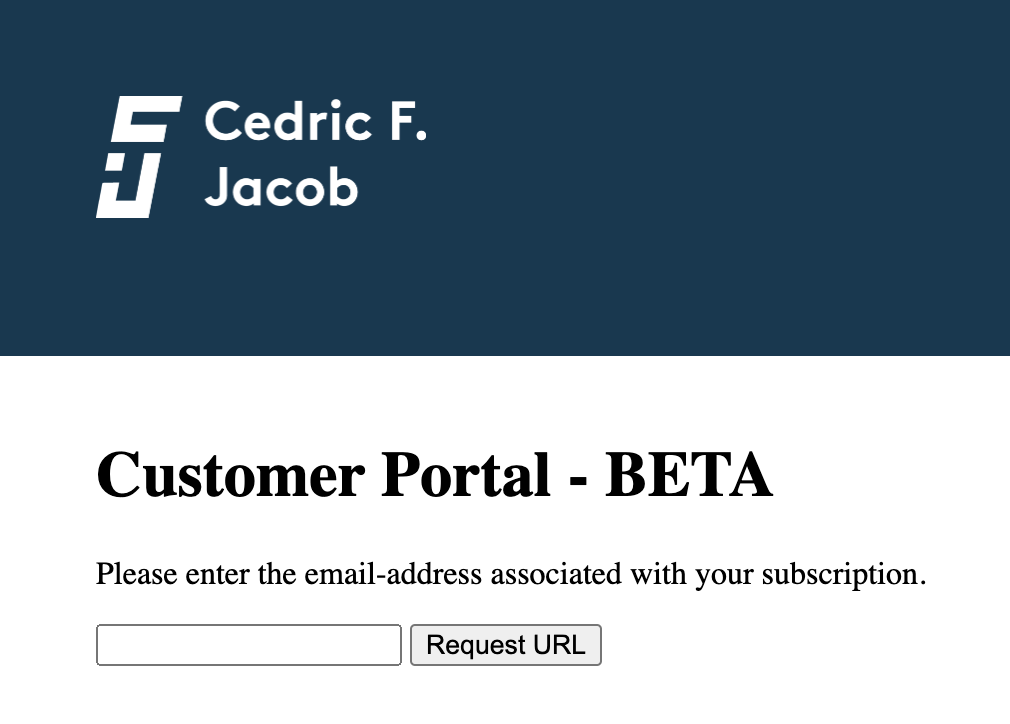
- Type in the email you use to receive your invoices.
- Click on the link you received.
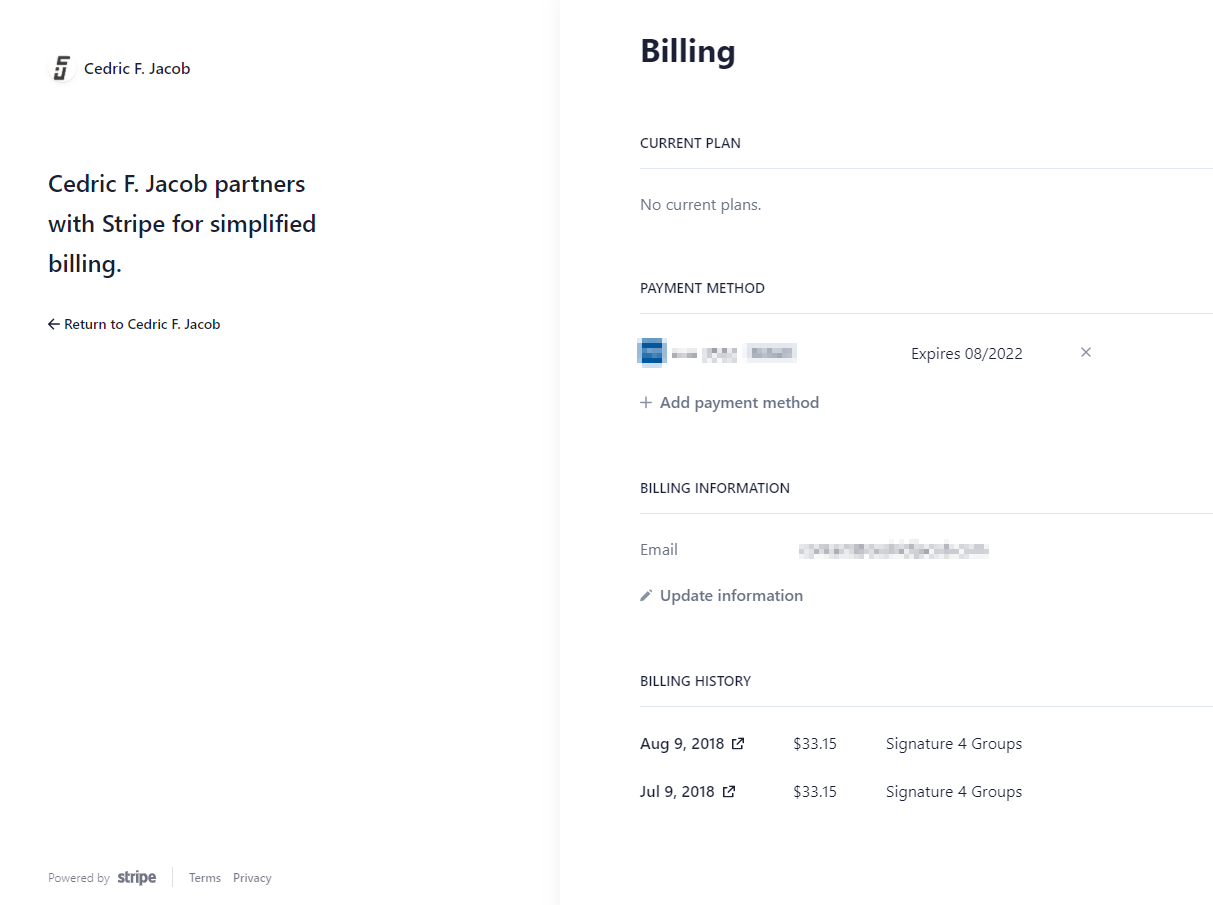
- Now you can change your payment details as shown in the picture below.
Change your payment method by reinstalling the app
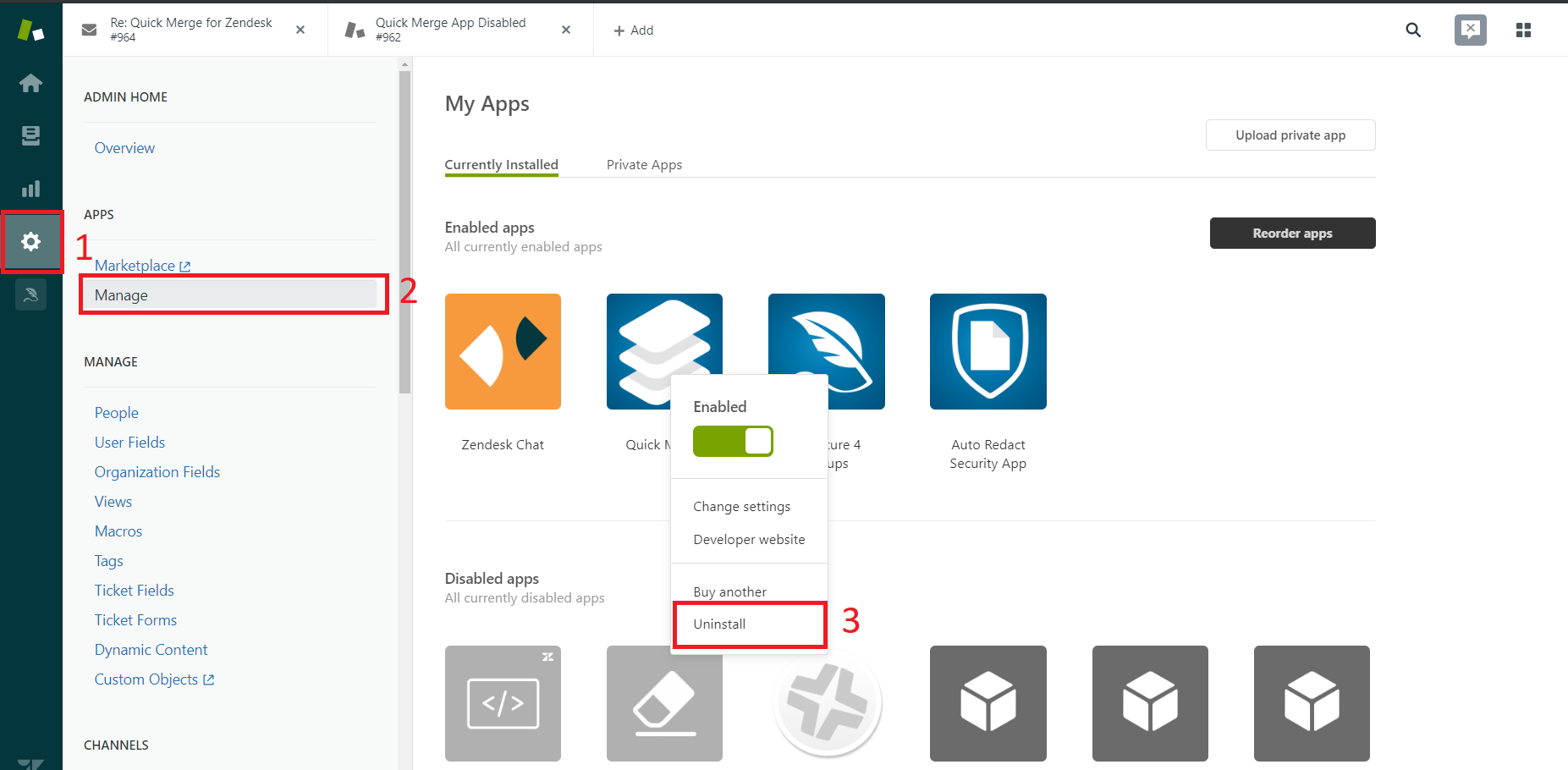
- Remove the application from your Zendesk account.
- Go to the Admin Panel.
- Click on Manage.
- Hover over the application to open the settings and click Uninstall.
- Reinstall the application from the Zendesk Marketplace. During this step, you can add the updated payment information to your account.
Note: Reinstalling the app will not result in any extra costs. The system will give you a prorated invoice in accordance with the actual usage over time.
Was this helpful?
Still need help?
Open a request and Quick Merge is pre-filled as the topic.