
Tutorial for Agents
This article shows the agent how to use this app.
Adding a signature to every reply can be a nuisance, especially when you are handling tickets from different groups at the same time. With Signature 4 Groups, you as the agent do not have to worry about it anymore. It is pre-set by the admin and automatically changes as you switch between groups.
How to use it
- Navigate to a ticket.
- Check if a group is set (otherwise, the submit field is grayed out).
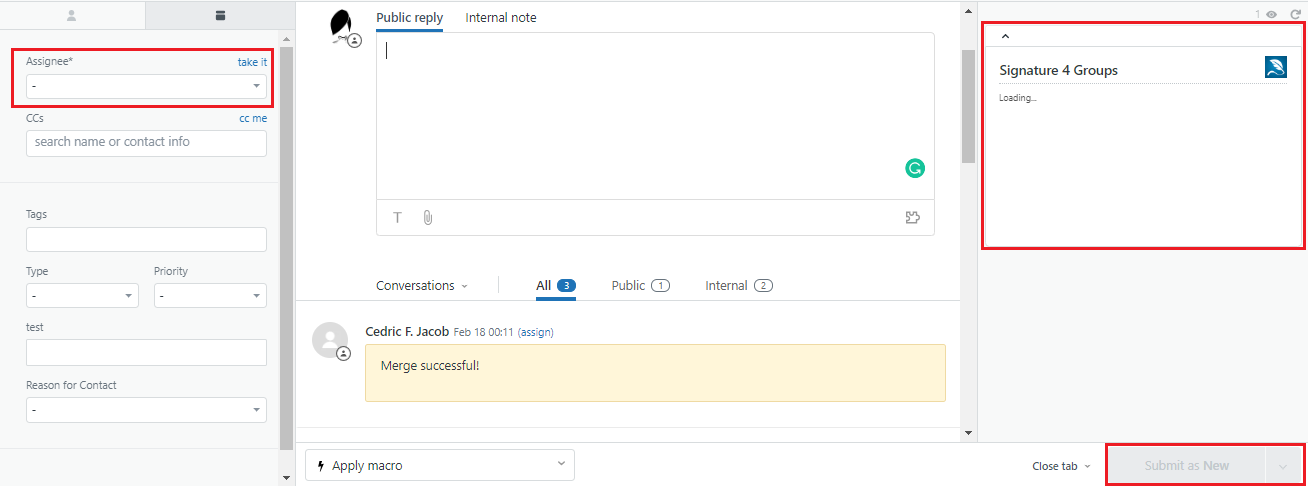
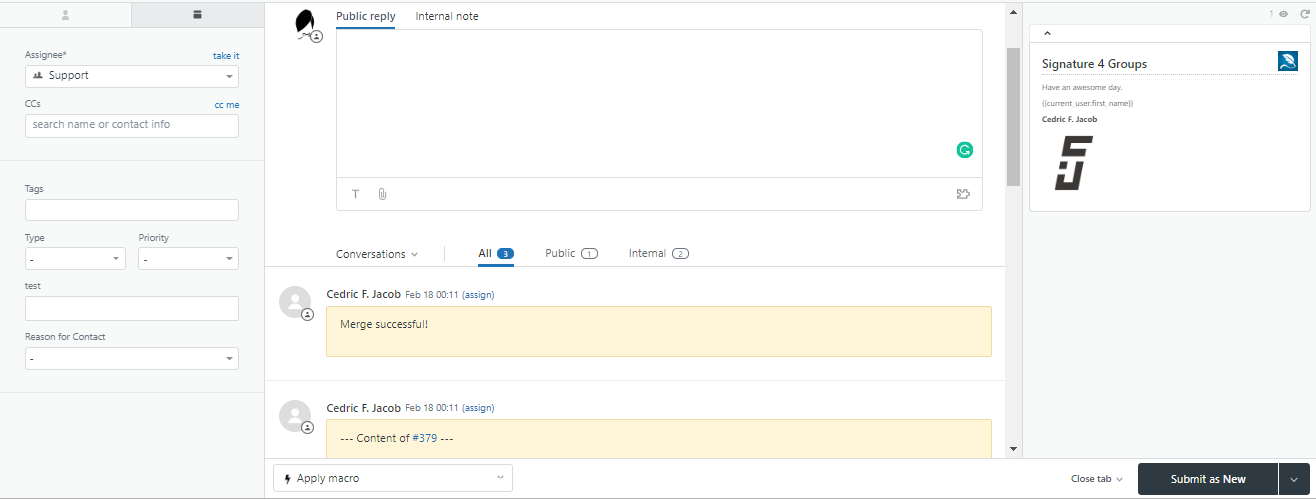
- If preview is enabled, you can preview the signature on the right side.
Important
Do not:
- Leave line breaks at the end of the signature.
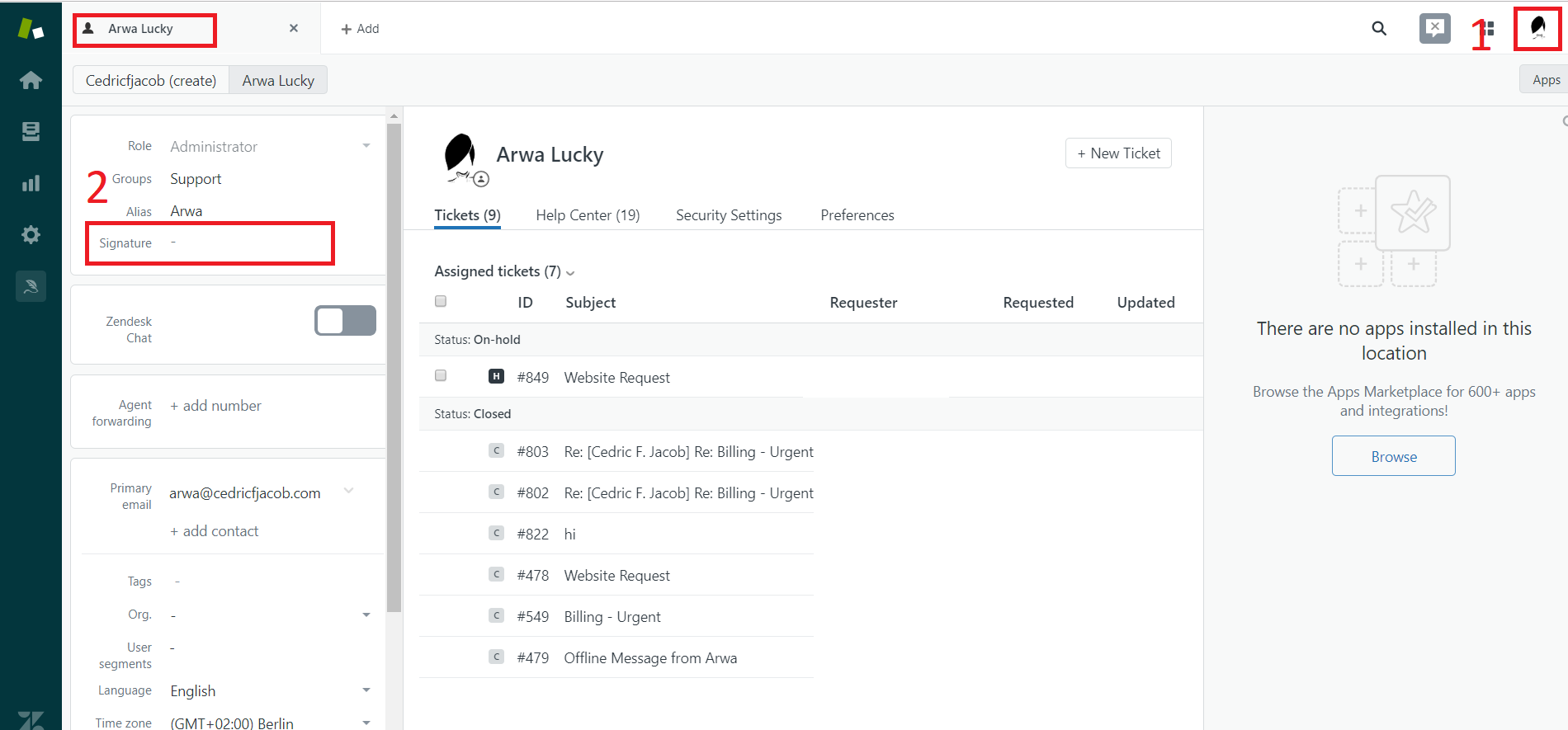
- Set a signature in your profile. To remove your profile signature or to make sure you do not have one, follow these steps:
- Click on your profile picture on the top right of the screen.
- In the menu, click View Profile.
- On the left, you will find the option to edit your signature, as shown below.
- Set this empty in order to remove your signature.
Was this helpful?
Still need help?
Open a request and Signature 4 Groups is pre-filled as the topic.