
Installation and Setup
This article will guide you through the installation and initial setup of the app.

Signature 4 Groups lets the same agent use different signatures when tending to tickets from different groups.
Installation
The application is available in the Zendesk Marketplace.
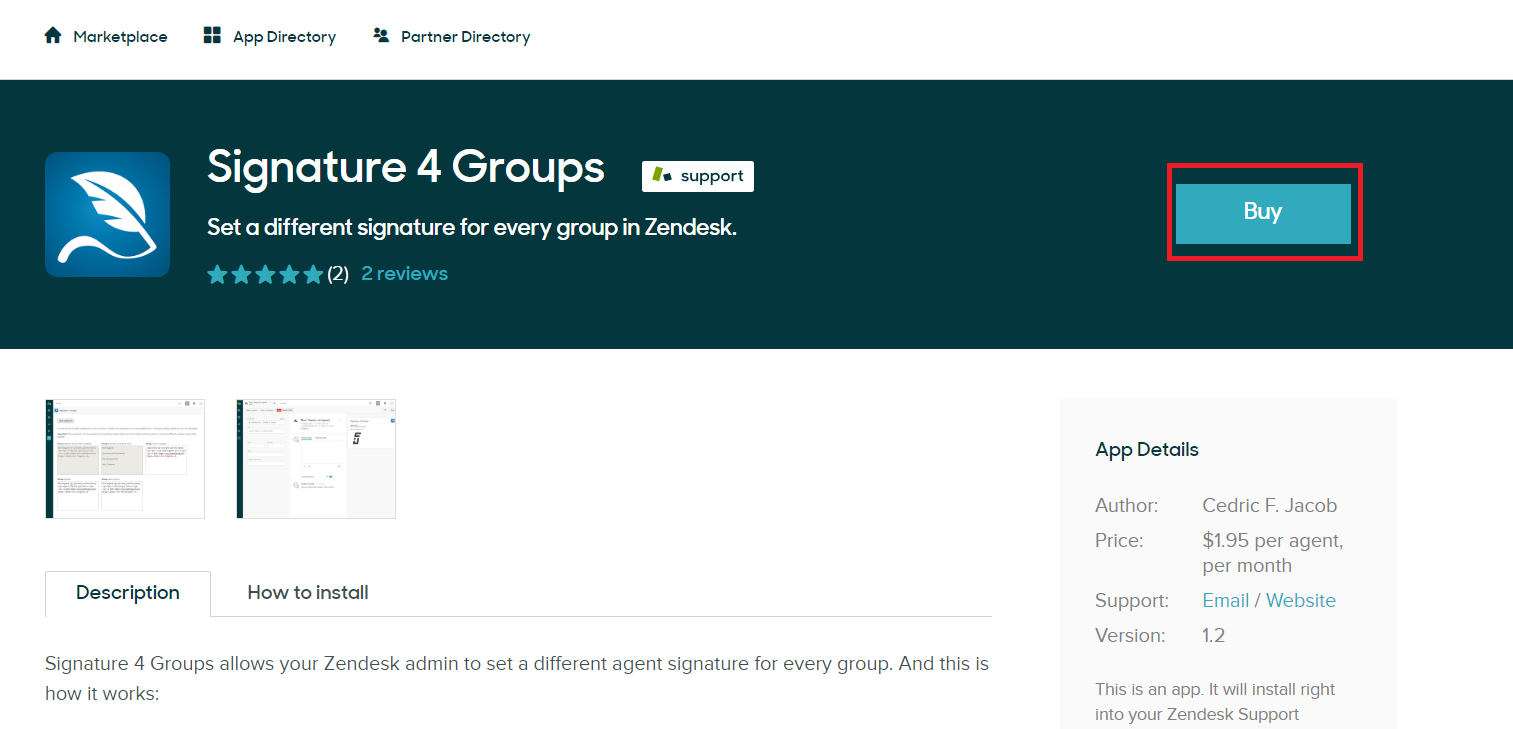
In order to purchase the app, please click on the Buy button as displayed below.
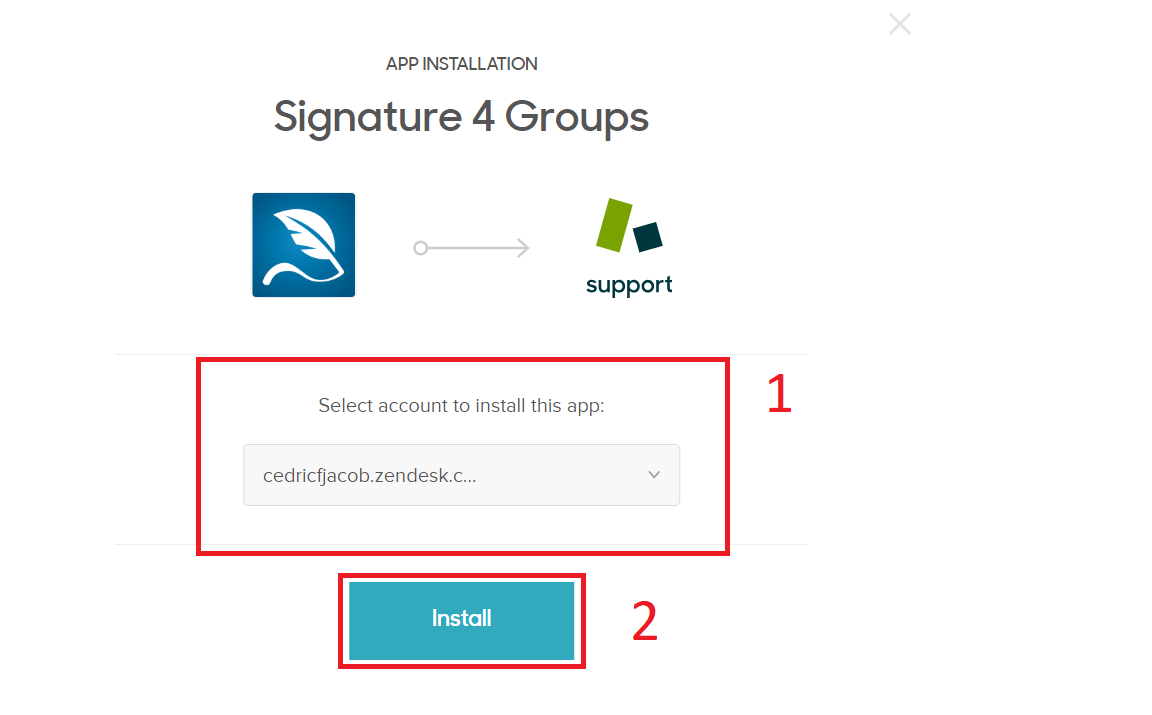
When prompted, please select the correct Zendesk account and click on Install.
Setup
The app can be used straight away, however, you may want to review the settings to adjust it to your needs.
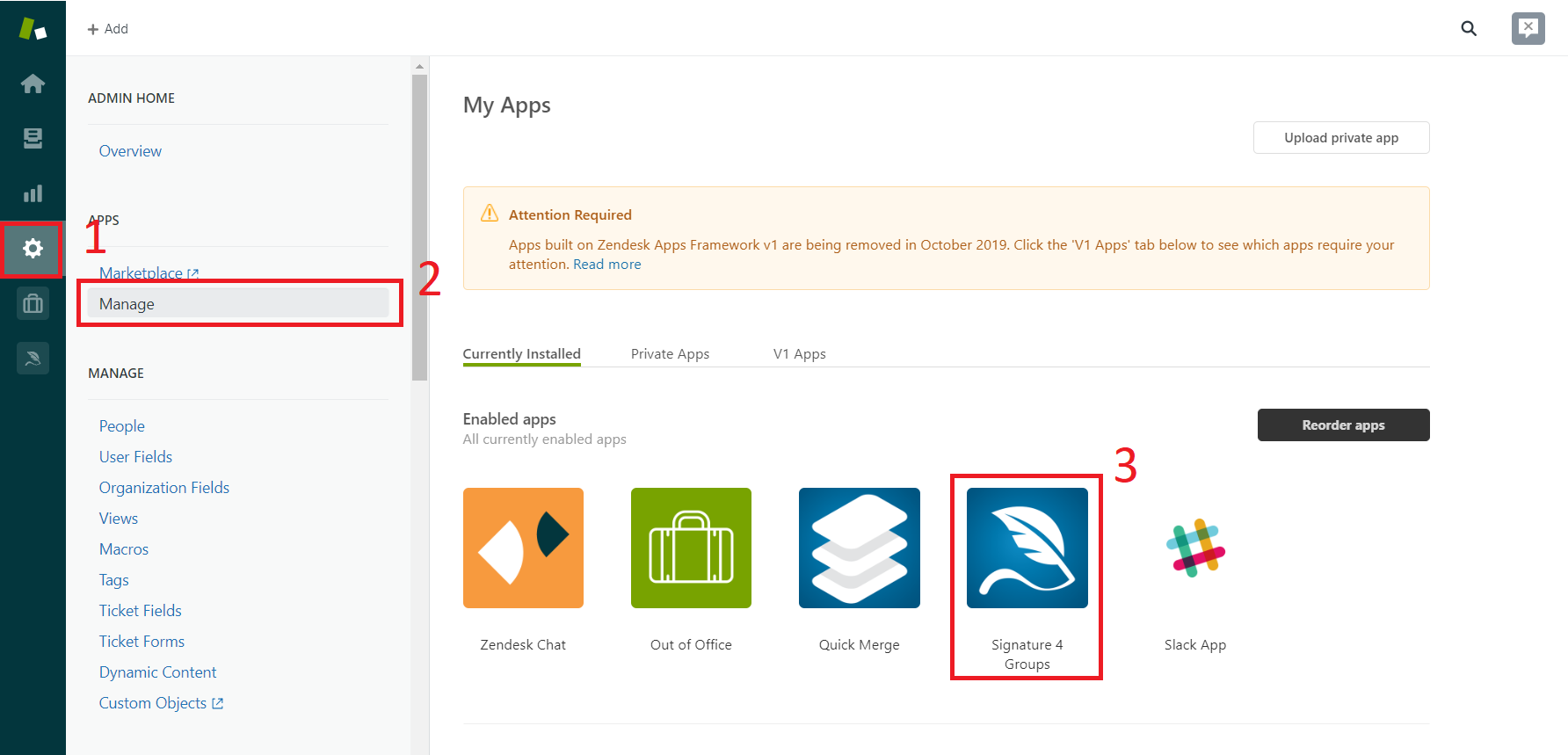
- Navigate to the Admin Panel by clicking on the cogwheel icon.
- Select Manage under Apps from the context menu.
- Click the Signature 4 Groups app.
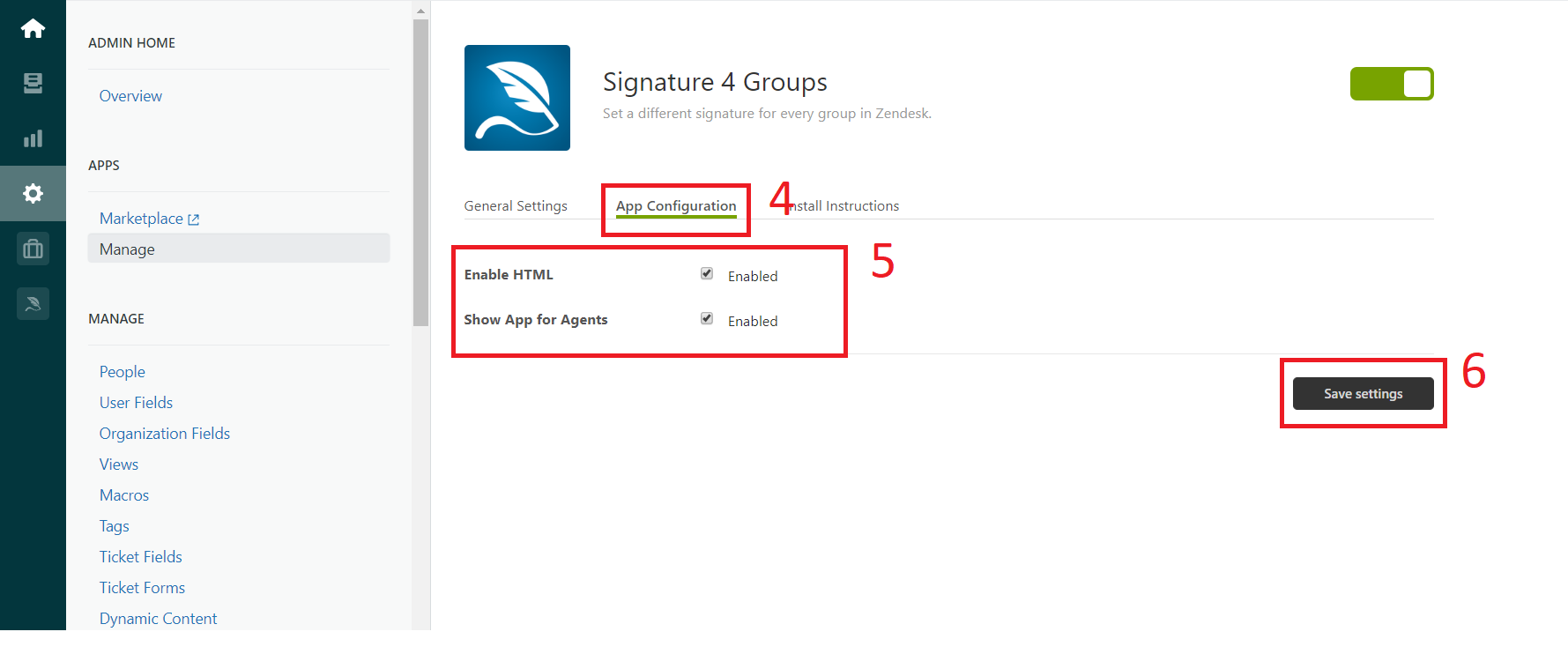
- Switch to the tab App Configuration.
- Set up your app by adjusting the following settings.
- Tick Enable HTML in order to utilize HTML for more sophisticated signatures.
- Tick Show Apps for Agents to make them visible on the right side of their ticket view.
- Click on Save Settings.
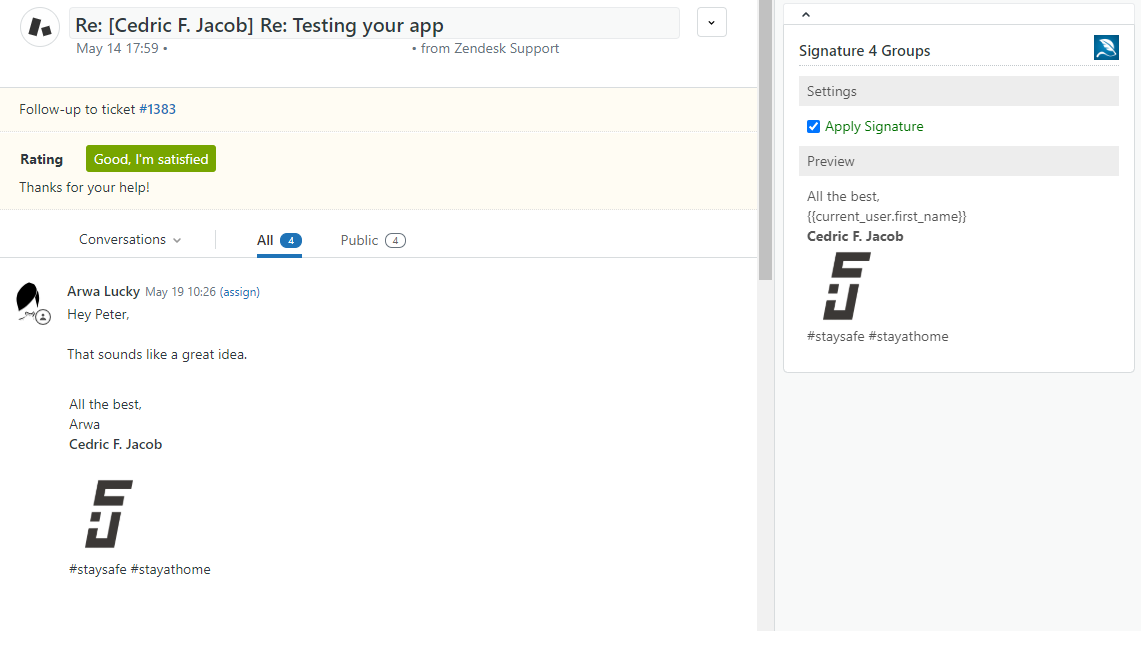
The following screenshot shows the Signature 4 Groups app with the preview for agents enabled.
Next, we can go ahead and create our first enhanced signature.
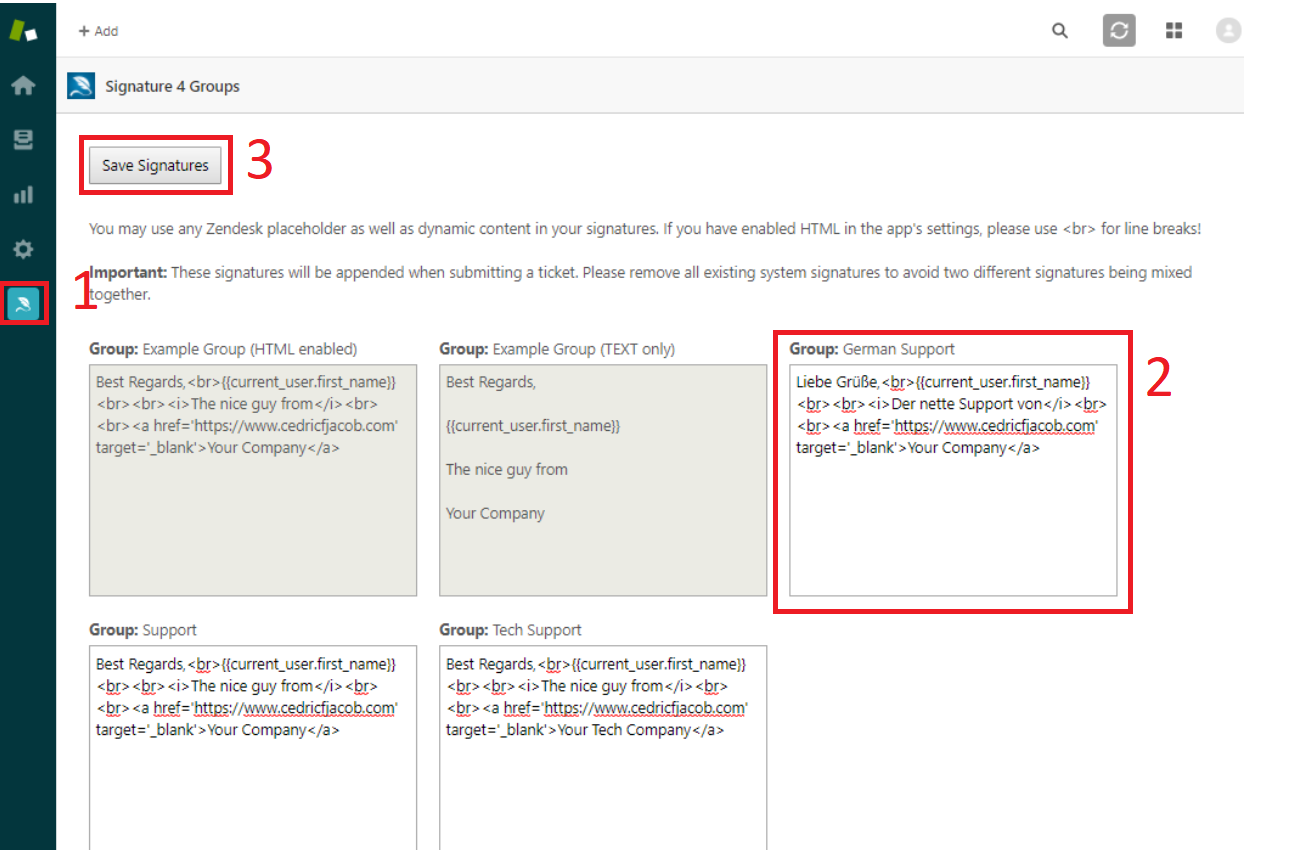
- Navigate to the Signature 4 Groups app by clicking on the corresponding icon within the navigation bar on the far left.
- Place the HTML or text signature within the textbox under the correct group names. For more help, see Signature Examples.
- Click on Save Signatures.
Here is an example of an HTML signature automatically added by the Signature 4 Groups app:
Still need help?
Open a request and Signature 4 Groups is pre-filled as the topic.